
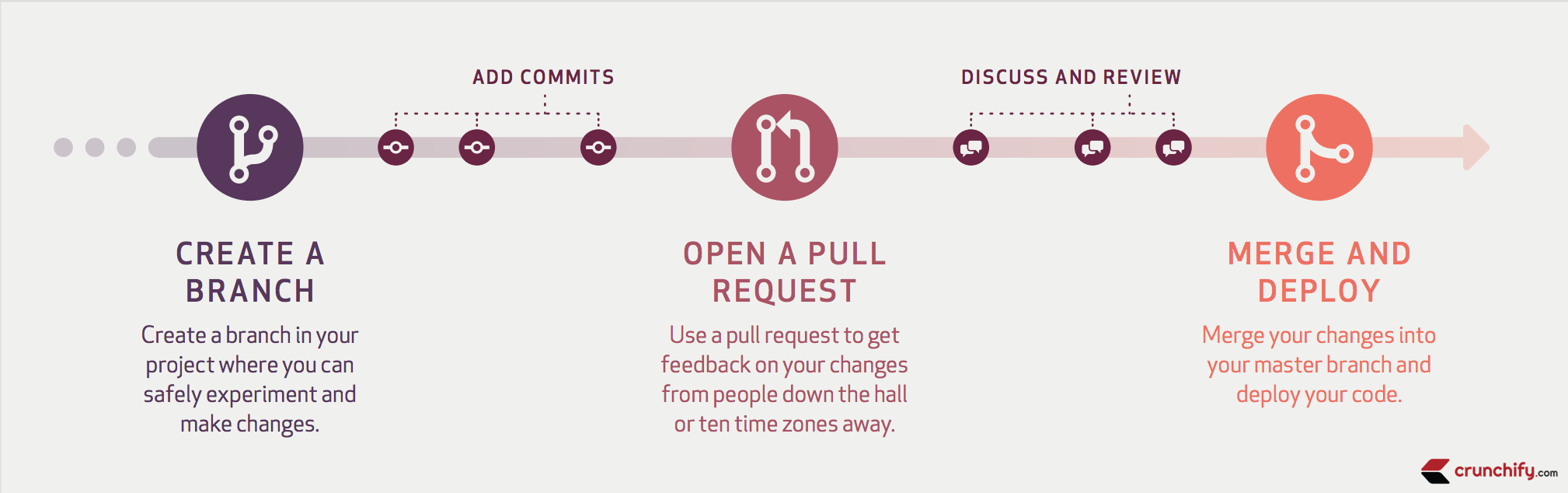
Github is pretty awesome. I simply love using it. GitHub is a Git repository web-based hosting service which offers all of the functionality of Git as well as adding many of it’s own features.
In this tutorial we are going to discuss:
- How to Fork Github repository
- Create Pull Request
- Merge Pull request.
Let’s get started:
NOTE: Here I’m going to create Pull Request for “Disqus” repository.
Step-1) Fork Github Disqus repository
Go to https://github.com/disqus/disqus-wordpress and click on Fork on the top right corner.

New Repository will be created under your account. Just notice your user name and repository name.

Step-2)
Clone newly created Repository to your workspace may be in Eclipse. Once done working on your part commit your changes to repo.
Let me know if you have any question on how to clone repository on your desktop / laptop.
Step-3)
Next step is to make changes to your code. Changes might be related anything. You might be fixing bug or creating new feature.
Once done working on your code, next thing is to commit your changes.
This is sample change.
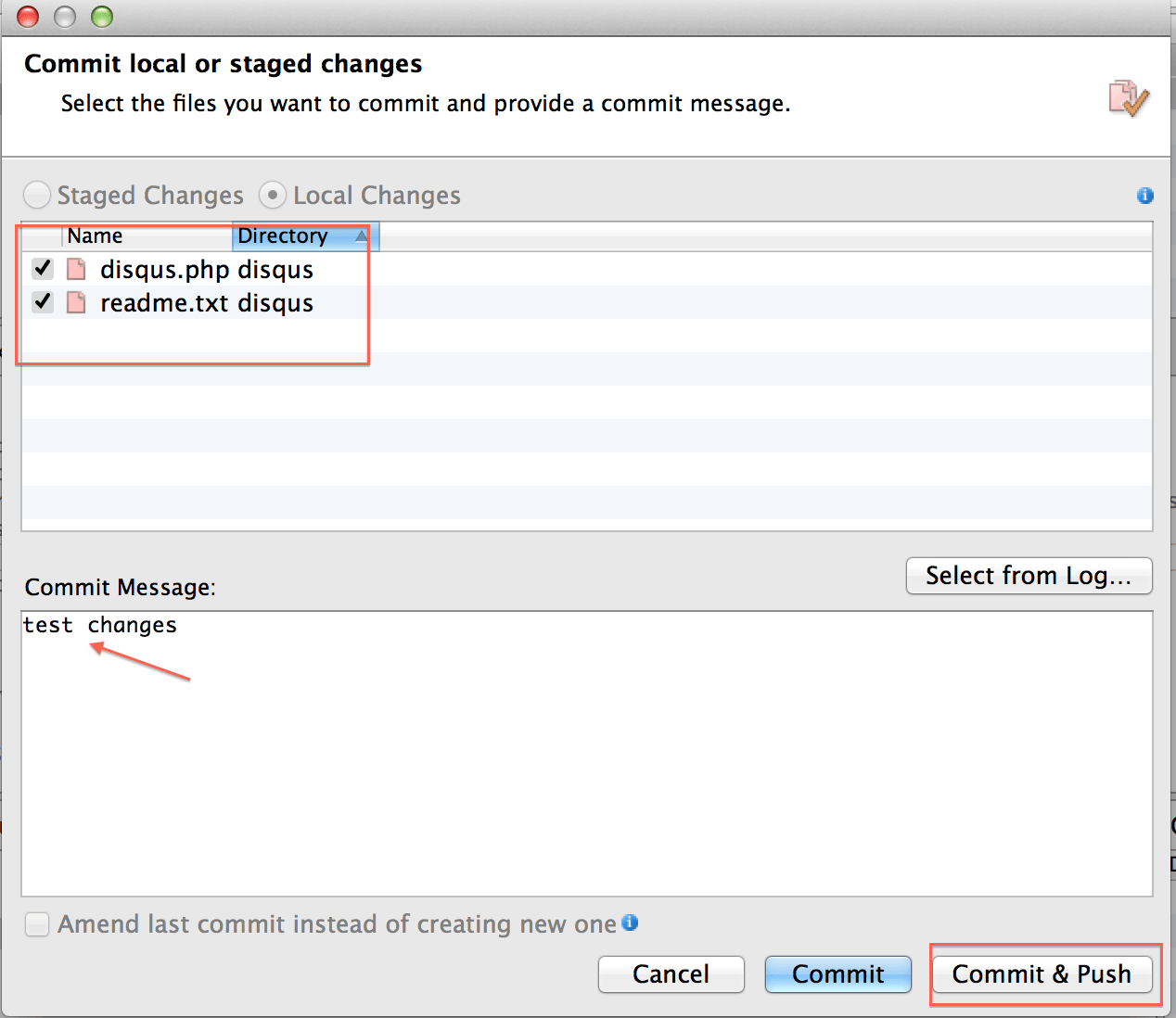
As you see in above diagram, during commit you have to provide comment about your changes so other folks will be able to see the purpose of your commit.
Step-4)
While committing your changes, you may need to login using SSH key and passphrase. Create SSH Keys. Generate Key using ssh-keygen.
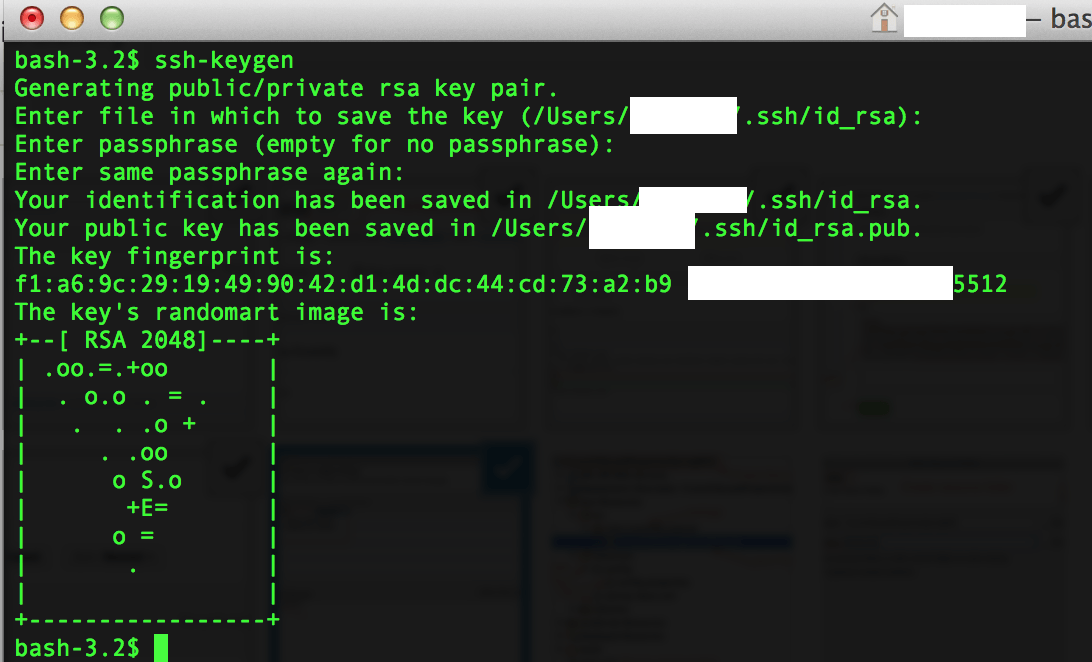
Step-5.
Put Key to your Github Account.
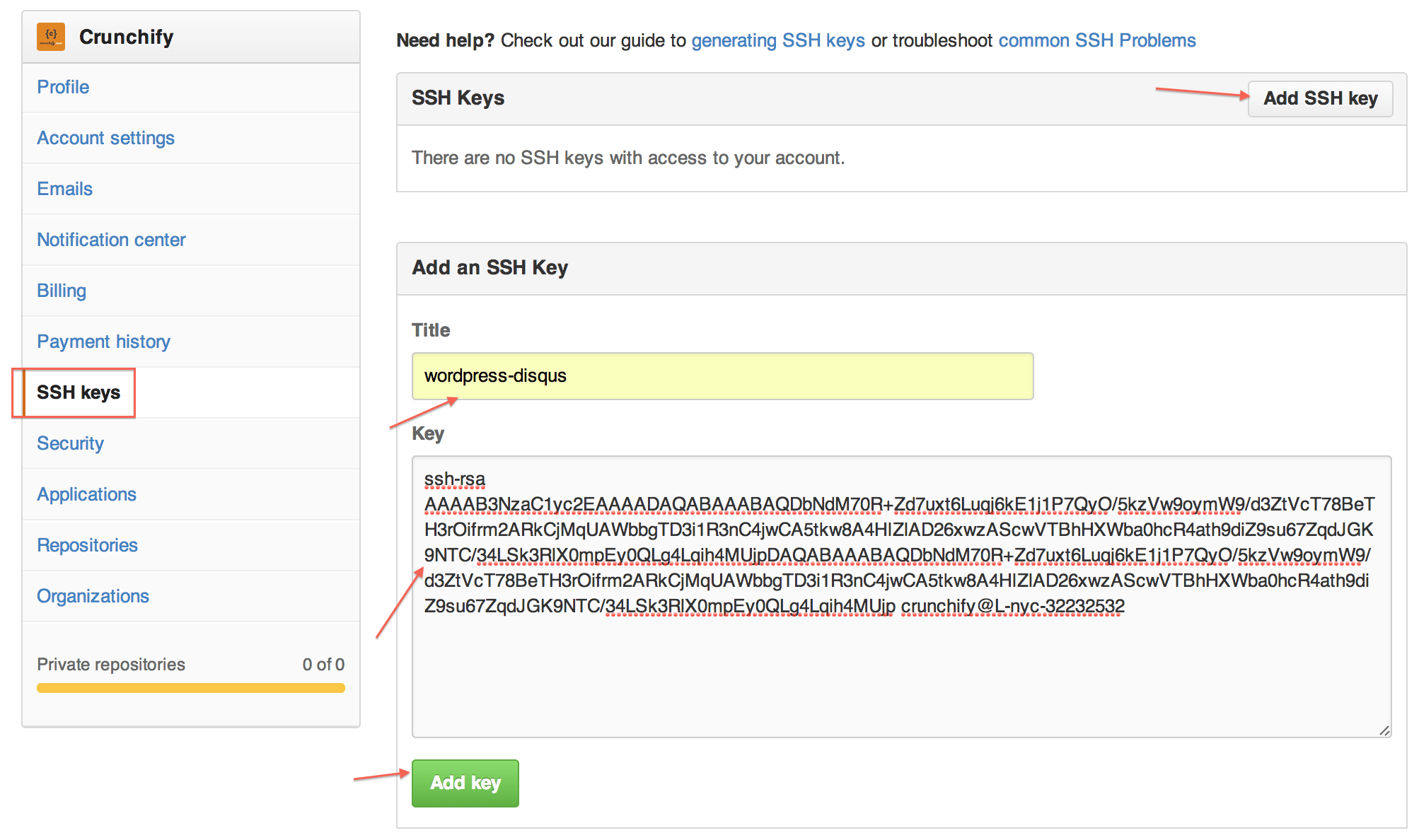
Step-6.
Click Commit & Push. (as per diagram in step 3).
Step-7.
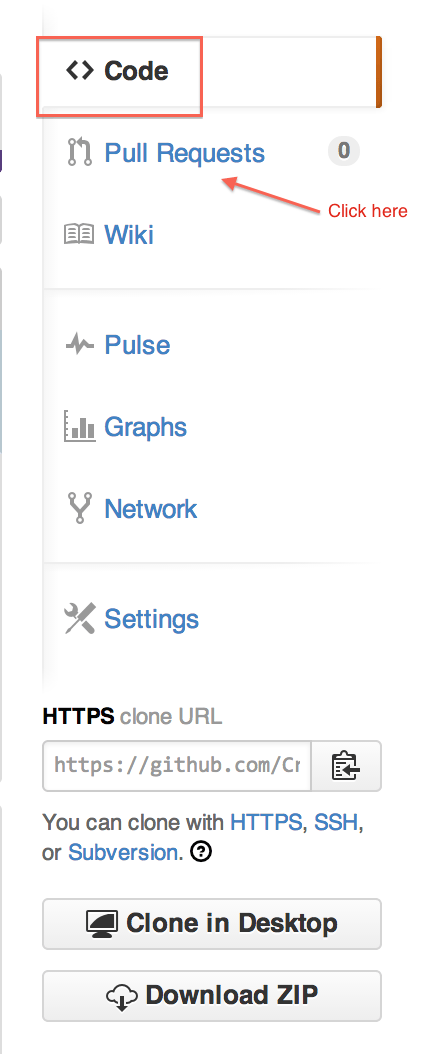
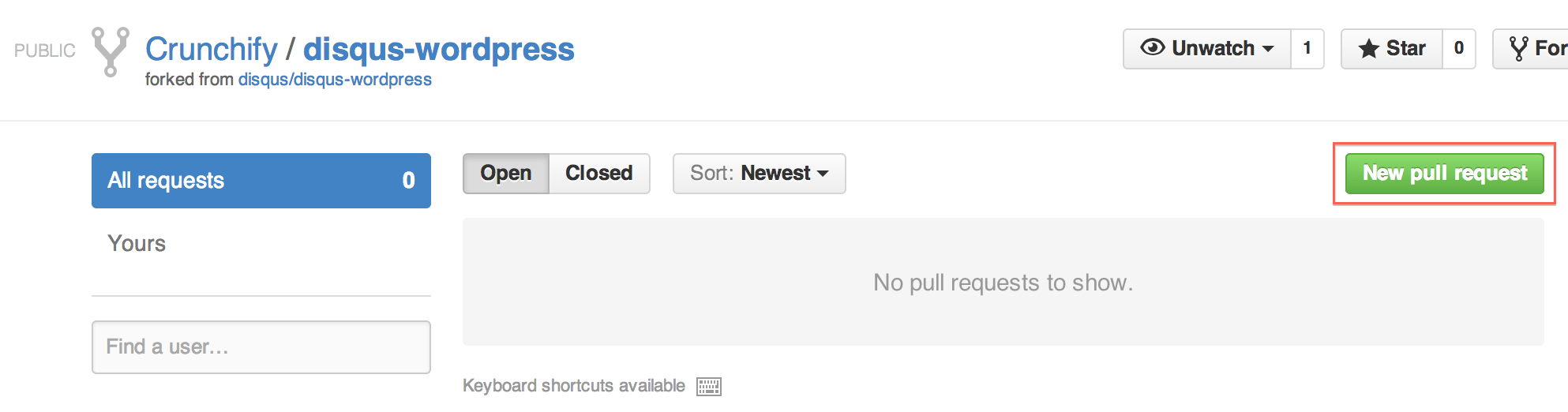
- Click on Create
Pull Request - Click on Green button
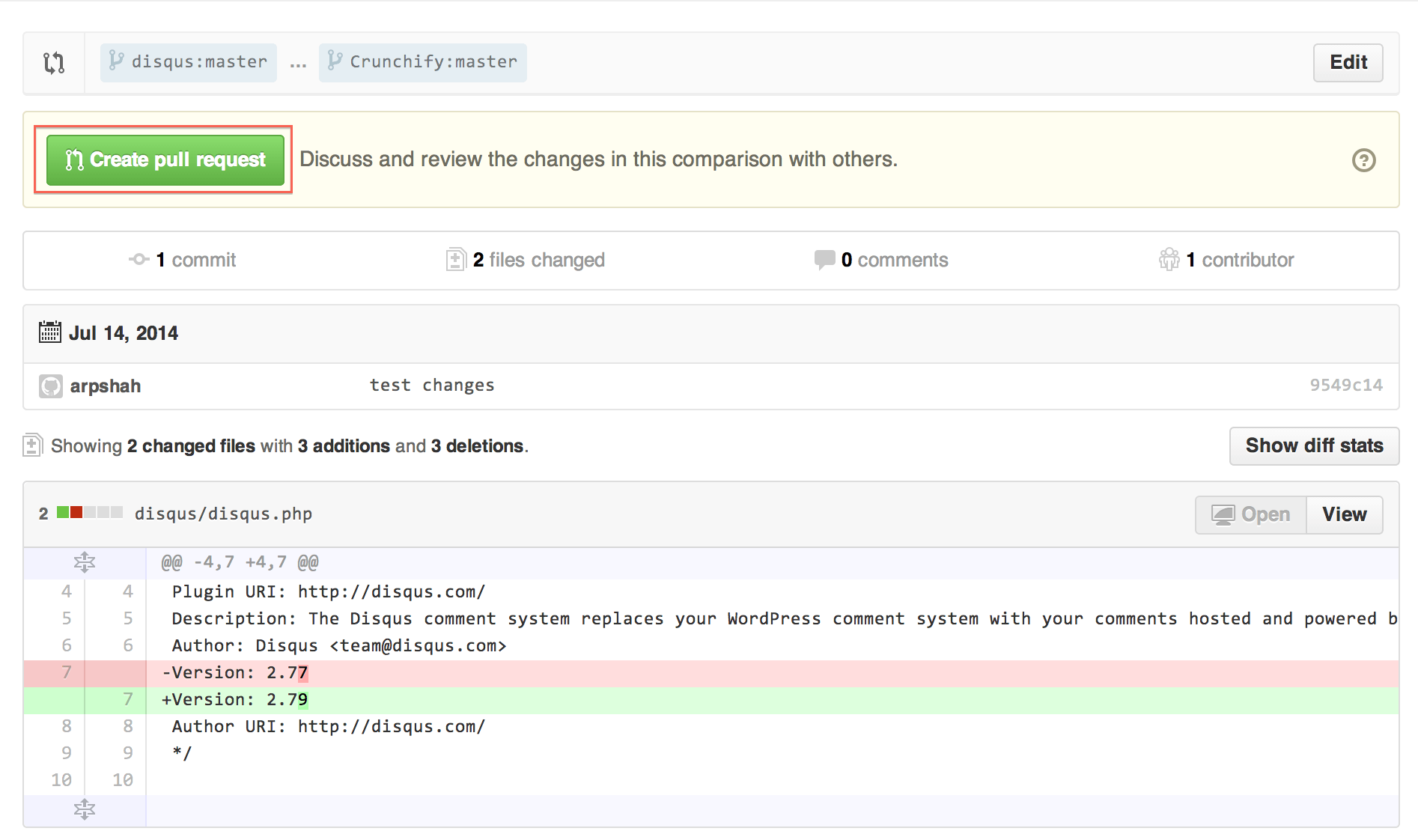
New pull request - Verify your changes and click on
Create pull Request
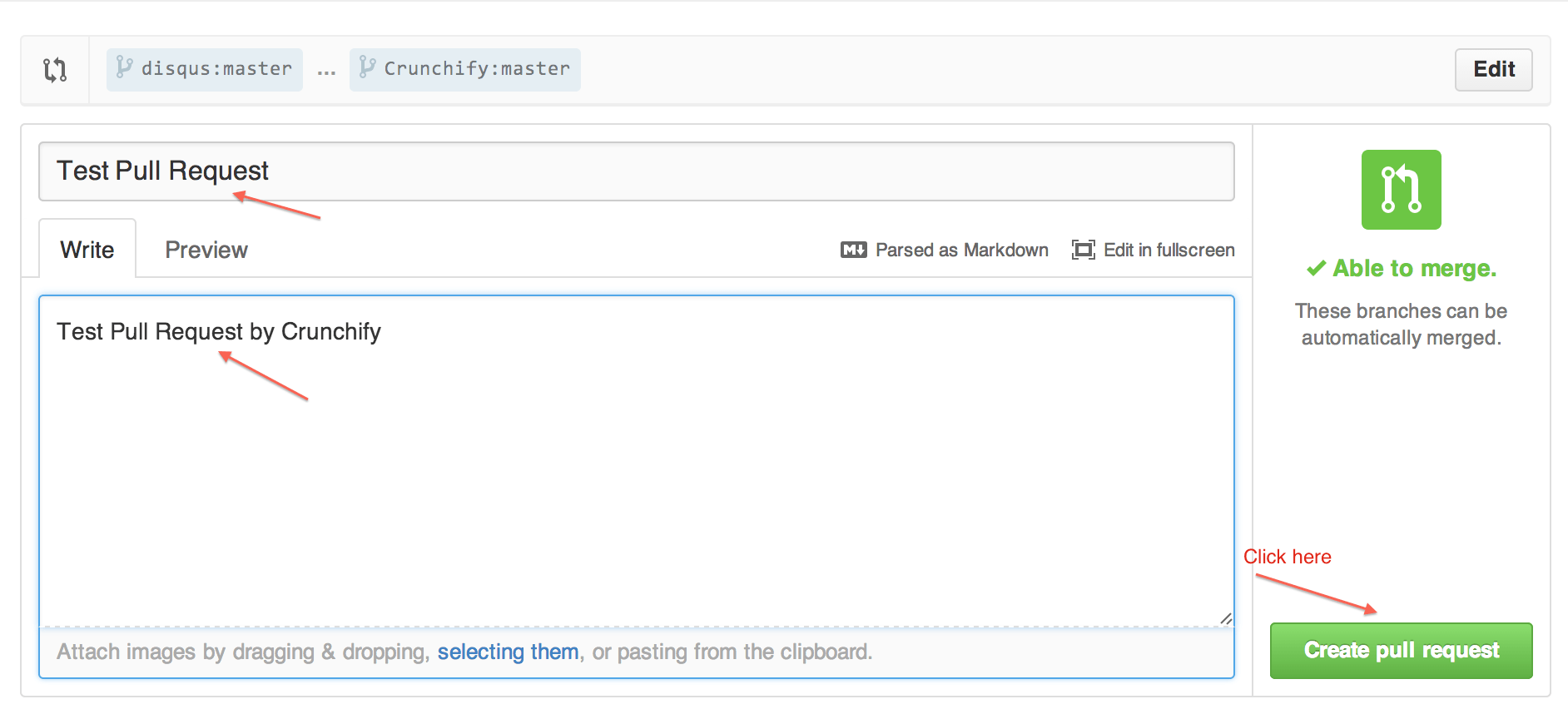
In the next step, you need to provide comment about your Pull request and click on Create pull request button.
Step 8.
New Pull request will be created with PR #. In our case it’s #81. Checkout Newly created Pull Request.
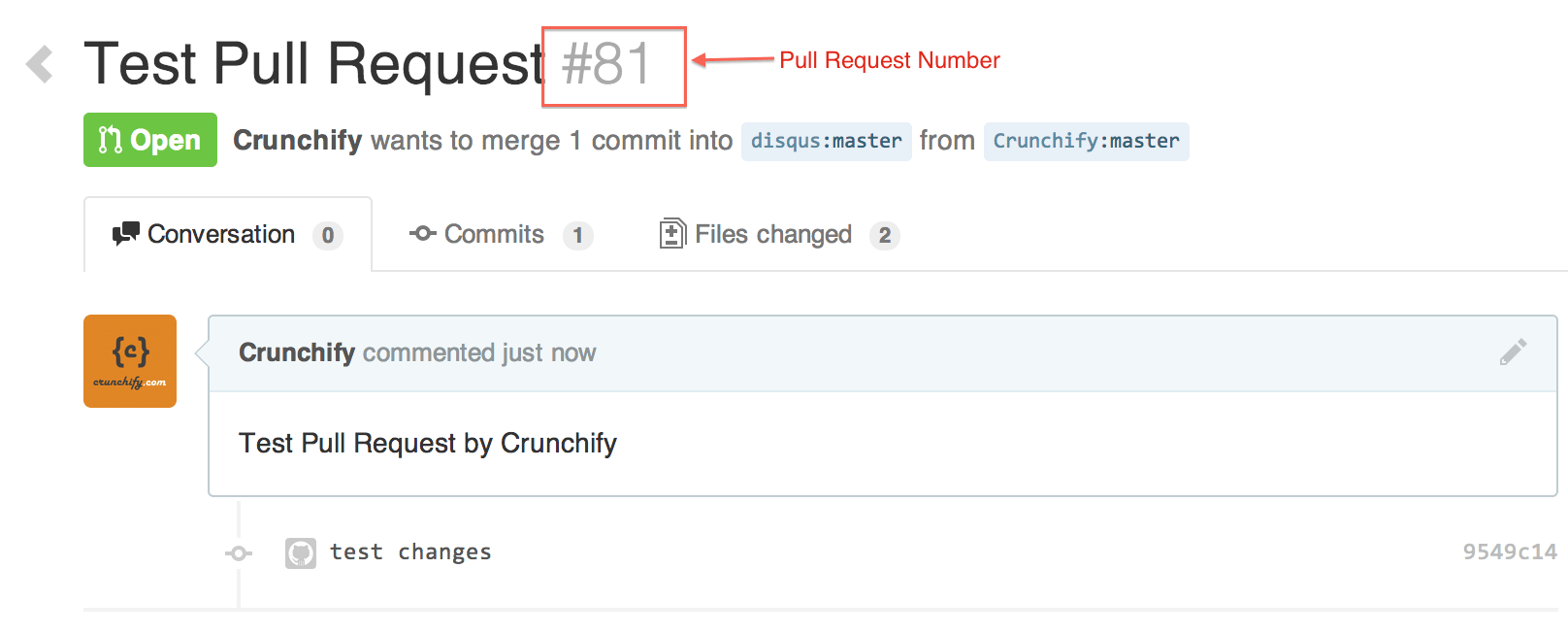
Now next step is to merge Pull Request. Only repository admin will be able to merge request.
How to Merge Pull Request:
- In any repository’s right sidebar, click Pull Requests.
- In the
Pull Requestslist, click the pull request you’d like to merge. - Click on
Merge pull requestbutton. - Provide Commit message in Text Field, or accept the default message.
- Click
Confirm Mergebutton Under the commit message box. - Optionally, delete the branch. This keeps the list of branches in your repository tidy.
This tutorial will work if you have any of below questions:
- How to make/create a pull request on GitHub?
- How to GitHub: Fork, Branch, Track, Squash and Pull Request?
- GitHub Standard Fork & Pull Request Workflow
- GitHub
Pull RequestTutorial - How to create Github pull request command line?
Here is an official Github cheatsheet:
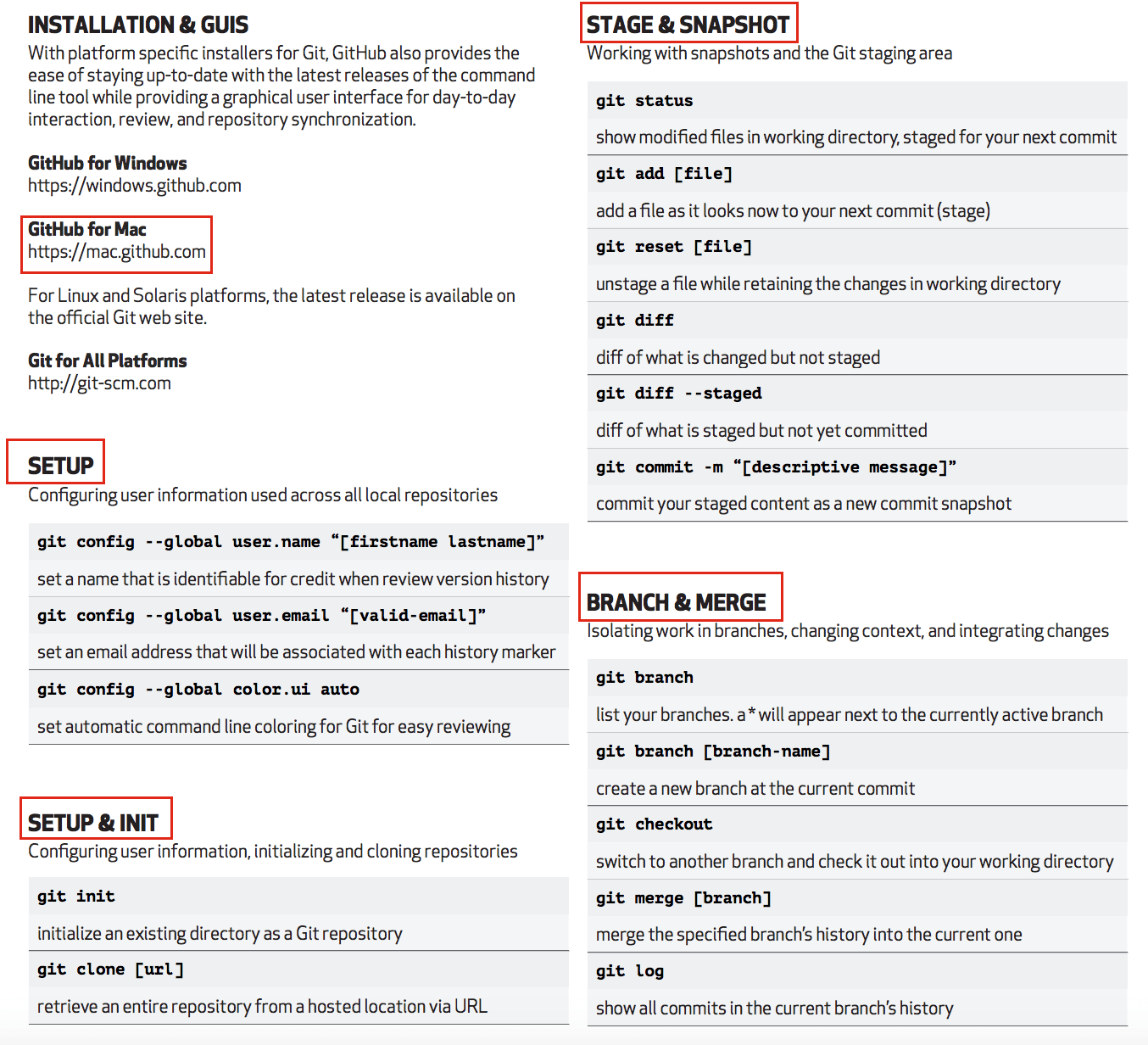
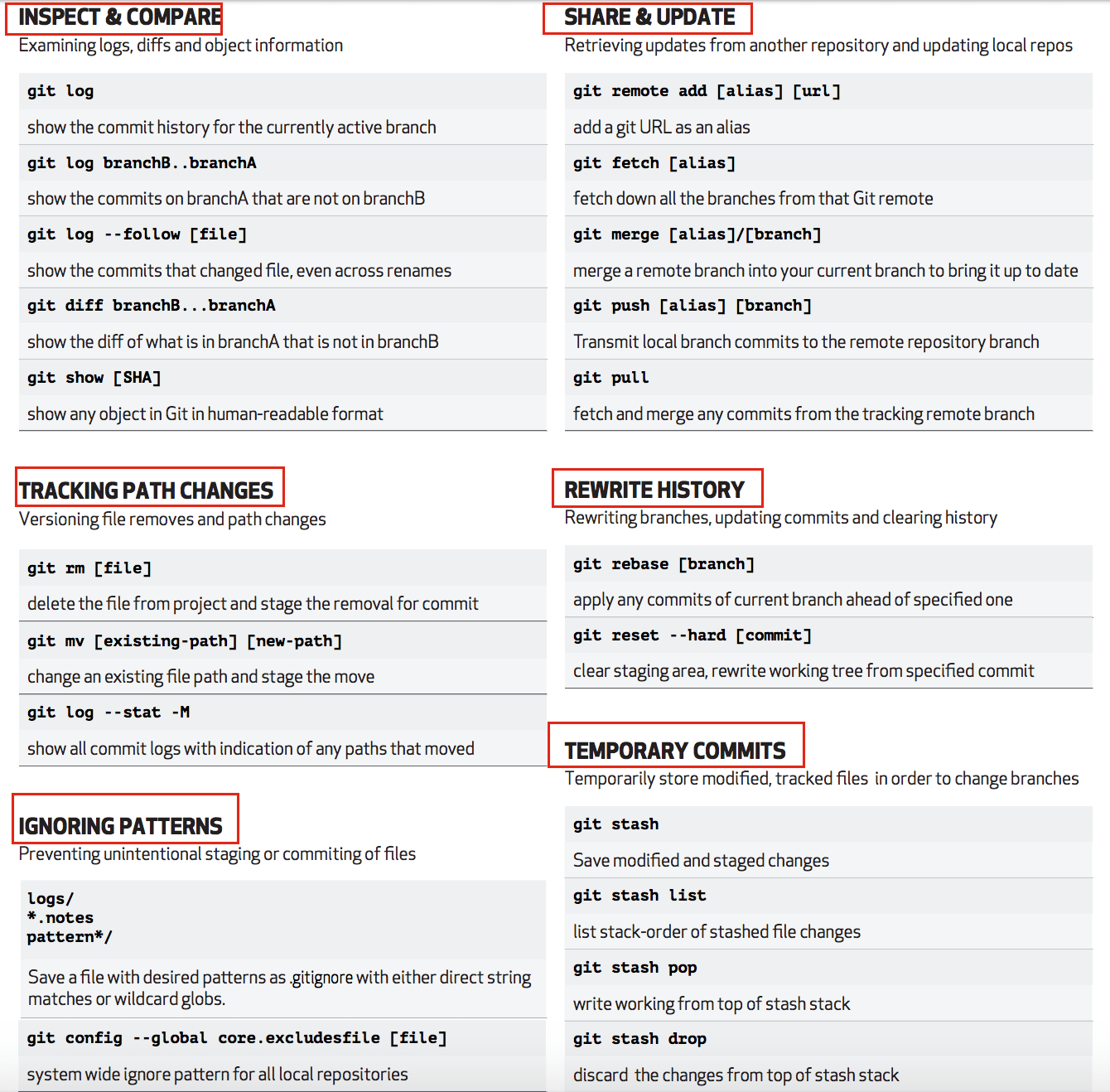
Let me know if you have any question about the same.